
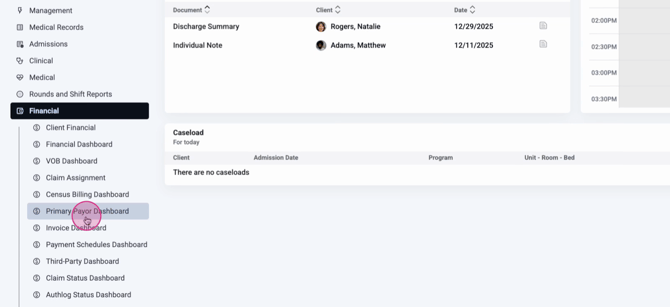
Step 1: From the home screen, select Financial.

Step 2: Click Primary and then choose Payer Dashboard.
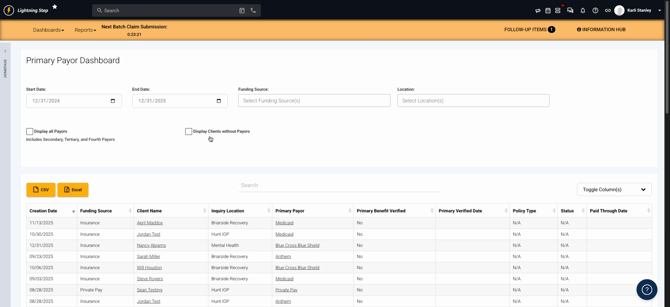
Step 3: Use the filters at the top of the dashboard to tailor your view. Filter by criteria like payer creation date, funding source, start/end dates, and location. You can also decide whether to show all payers for each client or stick with the primary payer only.
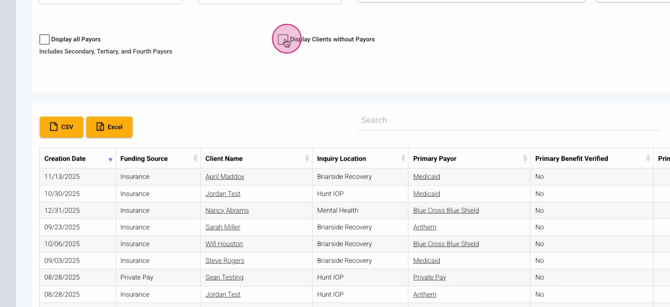
Step 4: Check the box to display clients without a payer. This option highlights any accounts missing a primary payer, so you can address gaps immediately.
Step 5: Review the results table. Here, you'll find key details such as:
-
Creation date for the primary payer
-
Funding source (insurance, private pay, or scholarship)
-
Client name and inquiry location
-
Payer verification status and verification date
-
Policy type (government funded or marketplace)
-
Plan status and paid through date

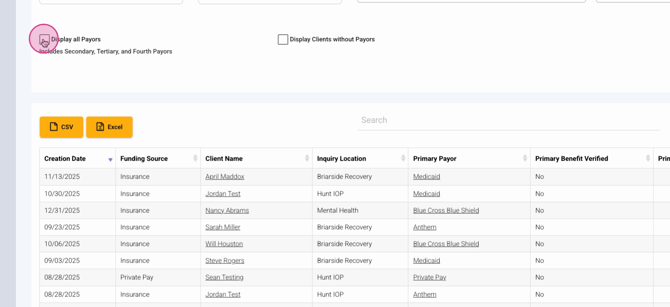
Step 6: If you choose to display all payers, the table expands to include details for secondary, tertiary, and additional payers entered on the client profile.
Step 7: Use quick links in the table. The client name leads directly to the client's Financial tab, and clicking the payer name opens that payer's record.
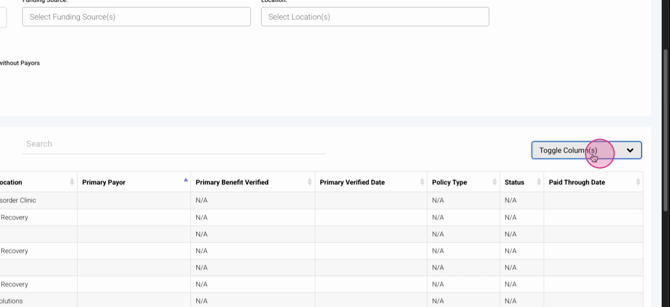
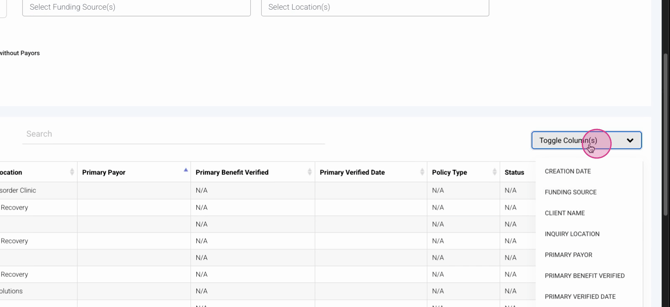
Step 8: Toggle which columns are visible in the dashboard to keep only the information you need, minimizing clutter.
The Primary Payer Dashboard makes it easy to stay updated on funding sources, insurance verifications, and missing data. Always ensure each account has a private pay funding source to handle client responsibility or lapses in coverage. By using this dashboard, you can quickly spot issues—like missing payers or unverified benefits—so you can take action fast and avoid billing delays.
For more details, check your internal documentation or contact the support team.
