
Step 1: Go to the edit claim screen for the claim you want to modify.
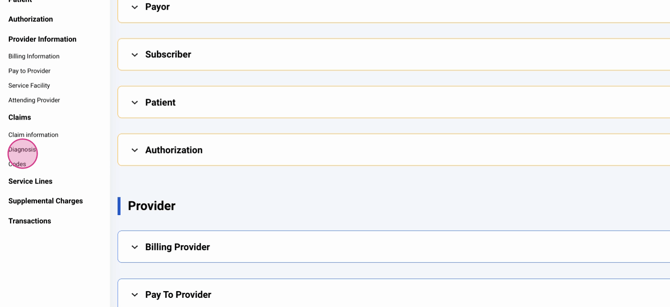
Step 2: Expand the Codes section to view the list of diagnosis codes.
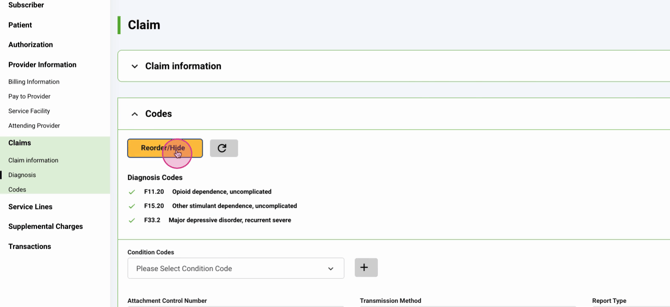
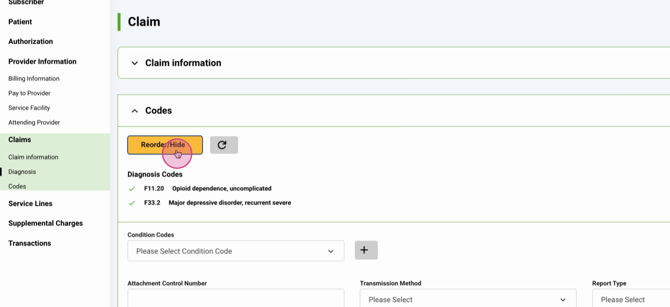
Step 3: Click Reorder/Hide to open the management pop-up.
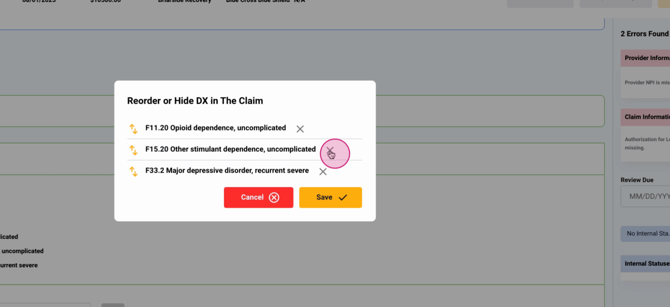
Step 4: To remove a diagnosis from the claim, click the X on its row. The record will be grayed out, meaning it’s excluded from this claim (but not deleted from the client's account).
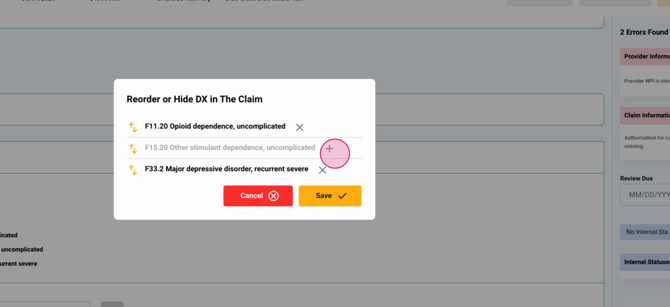
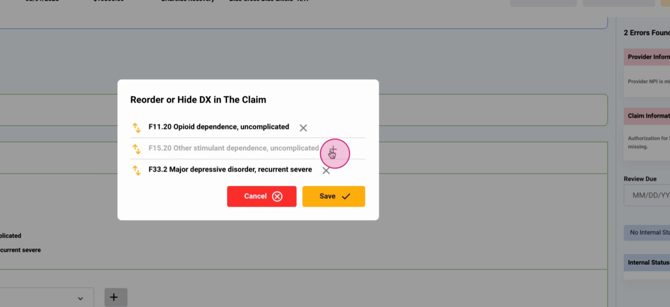
Step 5: To add a diagnosis back, click the plus (+) button on any grayed-out record.
Step 6: To reorder diagnoses, click and hold the double arrows on the left of a code, then drag it to its new position.
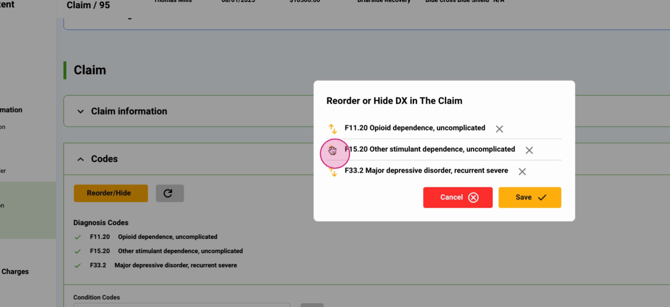
Step 7: When you’ve finished, click Save. The pop-up closes, and the claim’s diagnosis code order updates automatically.
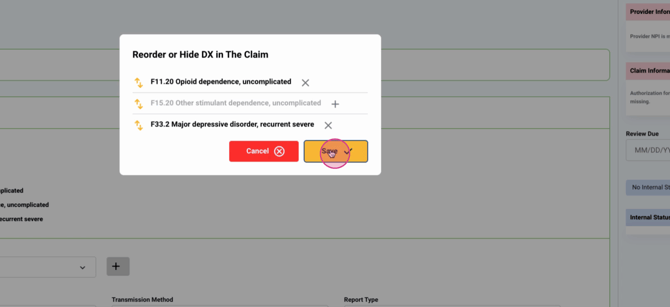
These changes apply only to the claim you’re editing; the original diagnosis list and priorities on the client’s account remain unchanged.
Step 8: To make additional changes after saving, click Reorder/Hide again, adjust as needed, and click Save.
Lightning Step makes it simple to customize claims to fit payer requirements while preserving your core records. For details or support, check your internal documentation or reach out to your Lightning Step team.
