
Step 1: Navigate to the Financial tab.
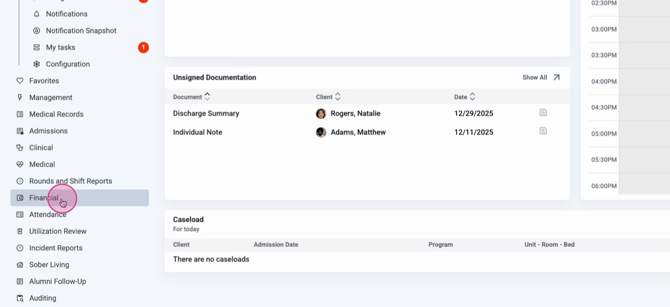
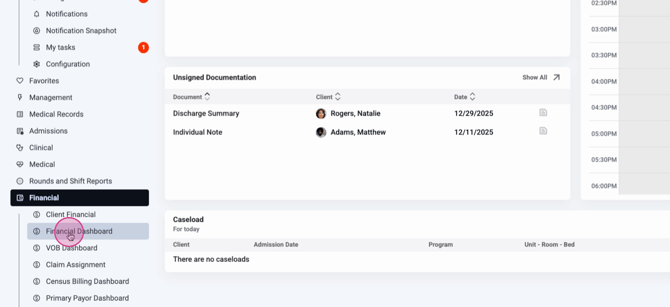
Step 2: Open the Financial Dashboard.
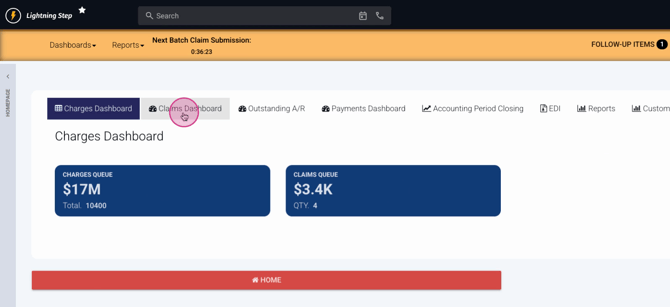
Step 3: Go to the Claims Dashboard to view all claims, including those needing action.
Step 4: Locate the claim needing correction and open it.

Step 5: Click the Edit (pencil) icon.
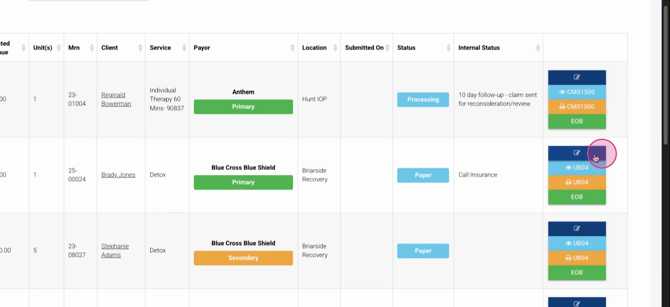
Step 6: In the claim options, choose Reopen to unlock the claim for editing.
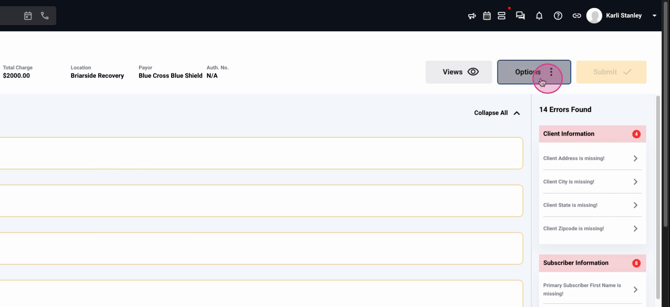
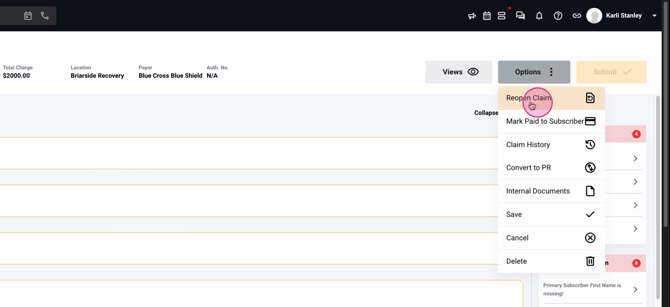
Step 7: Confirm reopening to start making changes.
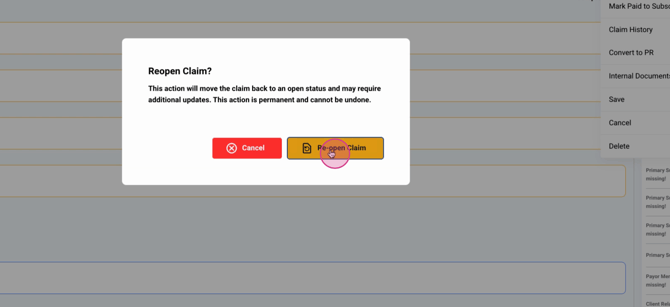
Now, you’re able to update any incorrect, missing, or invalid information on the claim.
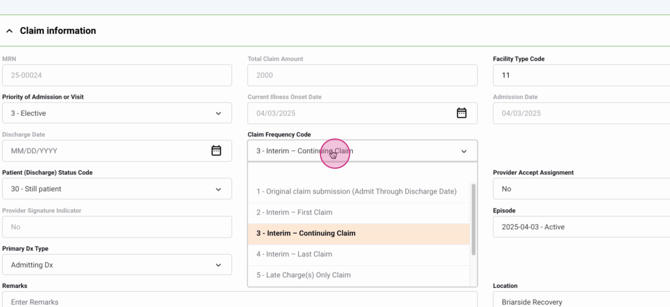
Step 8: Scroll to the Claim Information section.
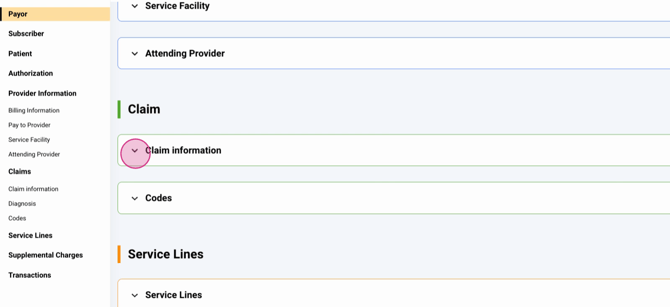
Step 9: Change the Claim Frequency Code to 7 (Replacement of Prior Claim). This marks your submission as a corrected claim.
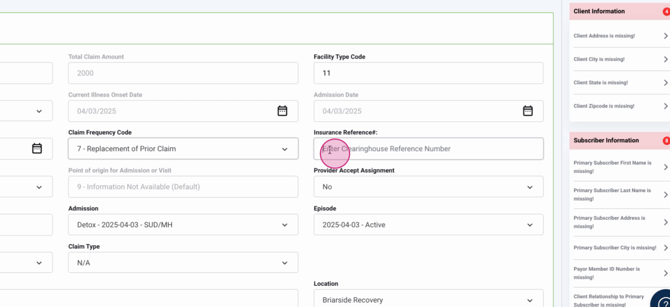
Step 10: Enter the Insurance Reference Number (also called ICN). You’ll find this number in the payer’s portal, a clearinghouse system, or on a remittance advice/EOB.
Step 11: Once all corrections are made and required fields updated, click Submit to requeue the claim for processing.
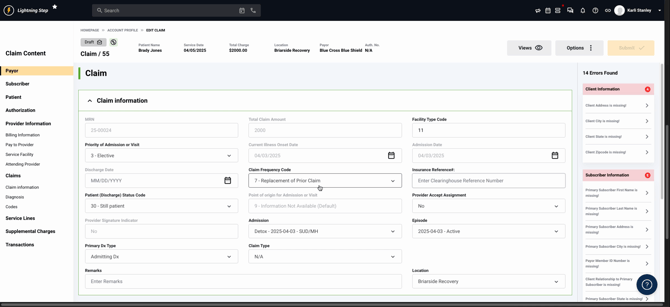
The claim now routes back to the payer with the proper corrected claim information.
Corrected claims help resolve denials or errors quickly. For more detailed guides, check your internal documentation or reach out to the support team if you need extra help.
