
Enabling Supplemental Charges
Step 1: Contact the support team or your customer success manager to request enabling supplemental charges for your organization.
Once enabled, you’ll gain access to supplemental charge fields in payer and claim management.
Adding Supplemental Information to a Client’s Payer
Step 1: Navigate to the client’s profile.
Step 2: Go to the Financial section.
Step 3: Edit the client’s payer by expanding the payer details.
Step 4: Scroll to the bottom and find the Supplemental Information section.
Step 5: Click Add.
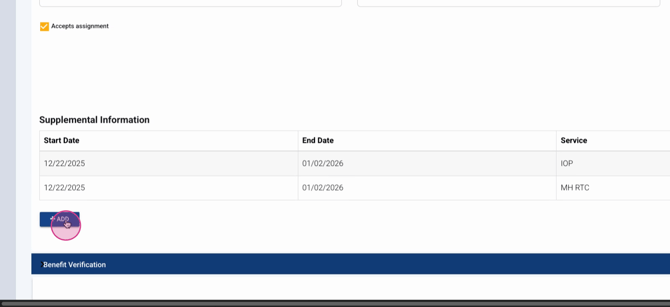
Step 6: Enter a start and end date for the supplemental charge period.
Step 7: Choose the service that requires a supplemental charge.
Step 8: Enter the rate for that service during the selected period. This rate applies only to the supplemental portion, not the full service rate.
Step 9: Click Save.
You can edit or delete this information anytime by clicking the edit pencil, updating the fields, and saving, or removing the record as needed.
Step 10: Save the payer record after making your changes.
Applying Supplemental Charges to Claims
Step 1: Create or edit charges for the client—manually or through automatic processes. Both methods will apply supplemental charges if configured.
Step 2: Open the edit claim screen to review charges.
Step 3: Expand the supplemental charges container on the claim. You’ll see records matching the supplemental details entered for the client’s payer if the service lines match.
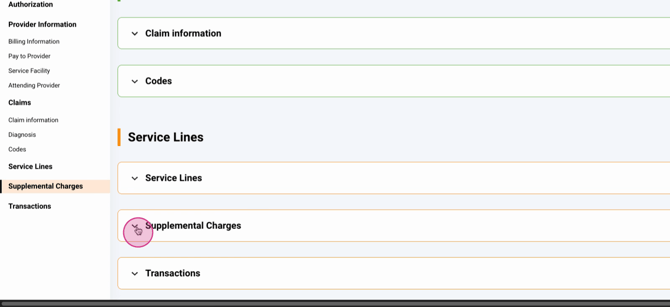
Step 4: Add supplemental charges to other service lines by clicking Add Supplemental Charges for each line as needed.
Step 5: Edit existing supplemental charges by clicking the edit pencil, adjusting the rate, adding notes, and saving. You can also remove charges here if they’re no longer needed.
Viewing Supplemental Charges in the Client Account
Step 1: Go to the client’s account profile.
Step 2: Open the charges section.
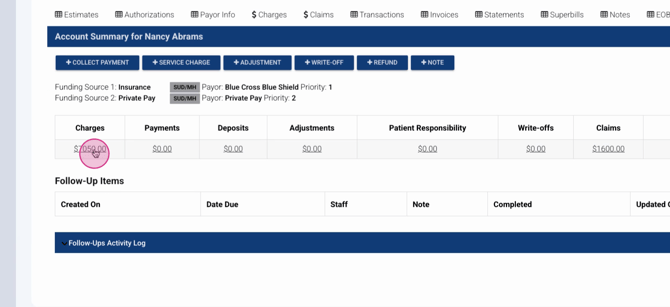
Step 3: Review supplemental charges within the private pay section. These charges appear with an SU indicator. Hover over the tag for a description, confirming it’s a supplemental charge.
You can generate invoices for these tagged private pay supplemental charges as needed.
Supplemental charges make it easy to bill for additional services not covered by insurance. With automatic application to claims and easy tracking in client records, Lightning Step helps you collect and manage these fees efficiently. For more details, consult your internal documentation or ask the support team for help.
